In This Article
- Action 1 - Contact creation
- Action 2 - Contact enrichment
- Feature/action 3 - How found details are organized
Action 1 - Contact creation
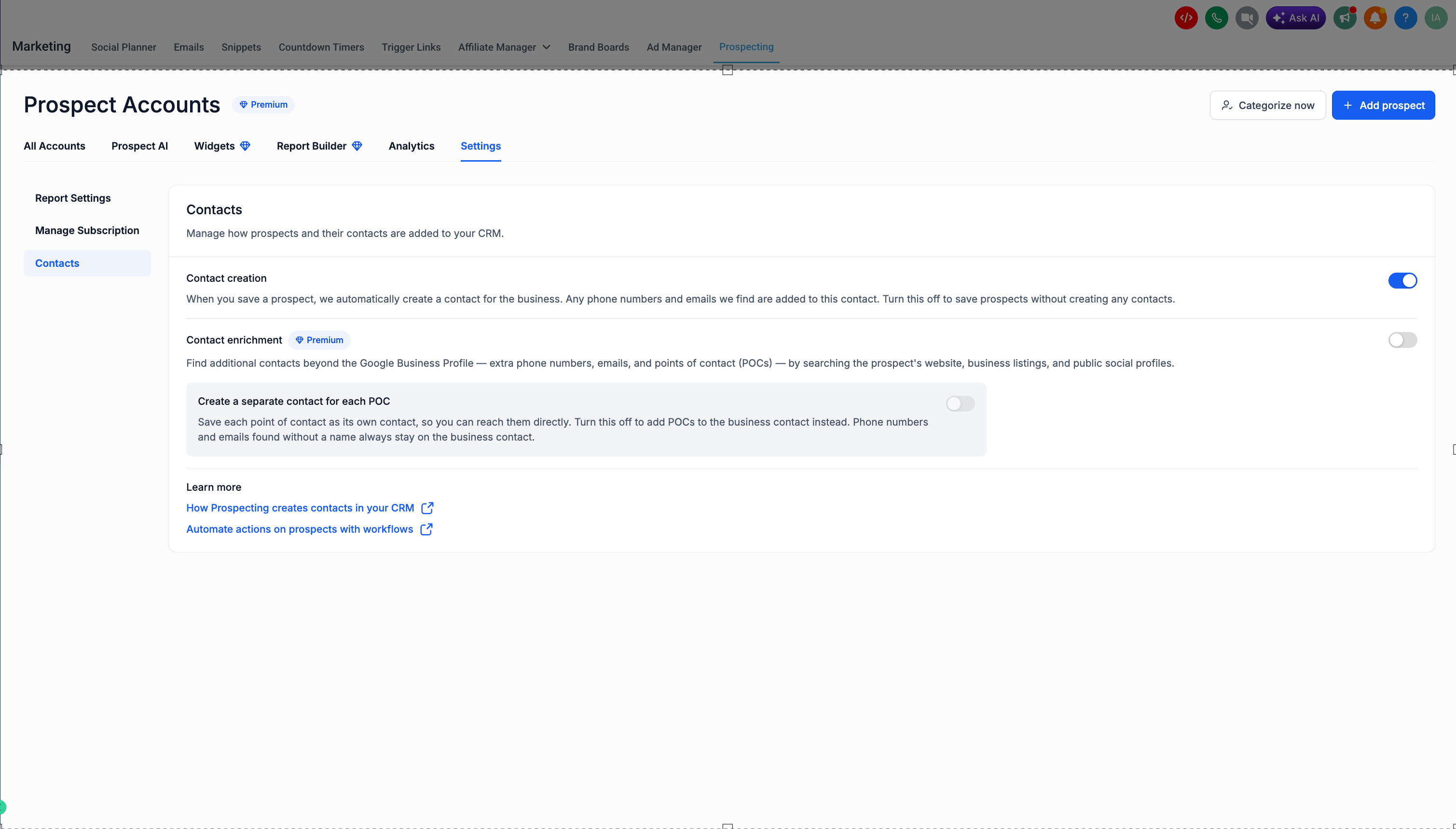
Contact creation can be managed under Marketing › Prospecting › Settings › Contacts. It's on by default.
When it's on, saving a prospect automatically creates one business contact in your CRM, built from the details available at that moment:
- From prospect's Google Business Profile (number, address, website url etc)
- Details you add through forms
- Details captured by website prospecting widgets
- Anything if you have entered manually
Any additional phone numbers and emails we find are added to this same business contact, so you start with one clean record per business. Turn this off to save prospects without creating any contacts.
Action 2 - Contact enrichment
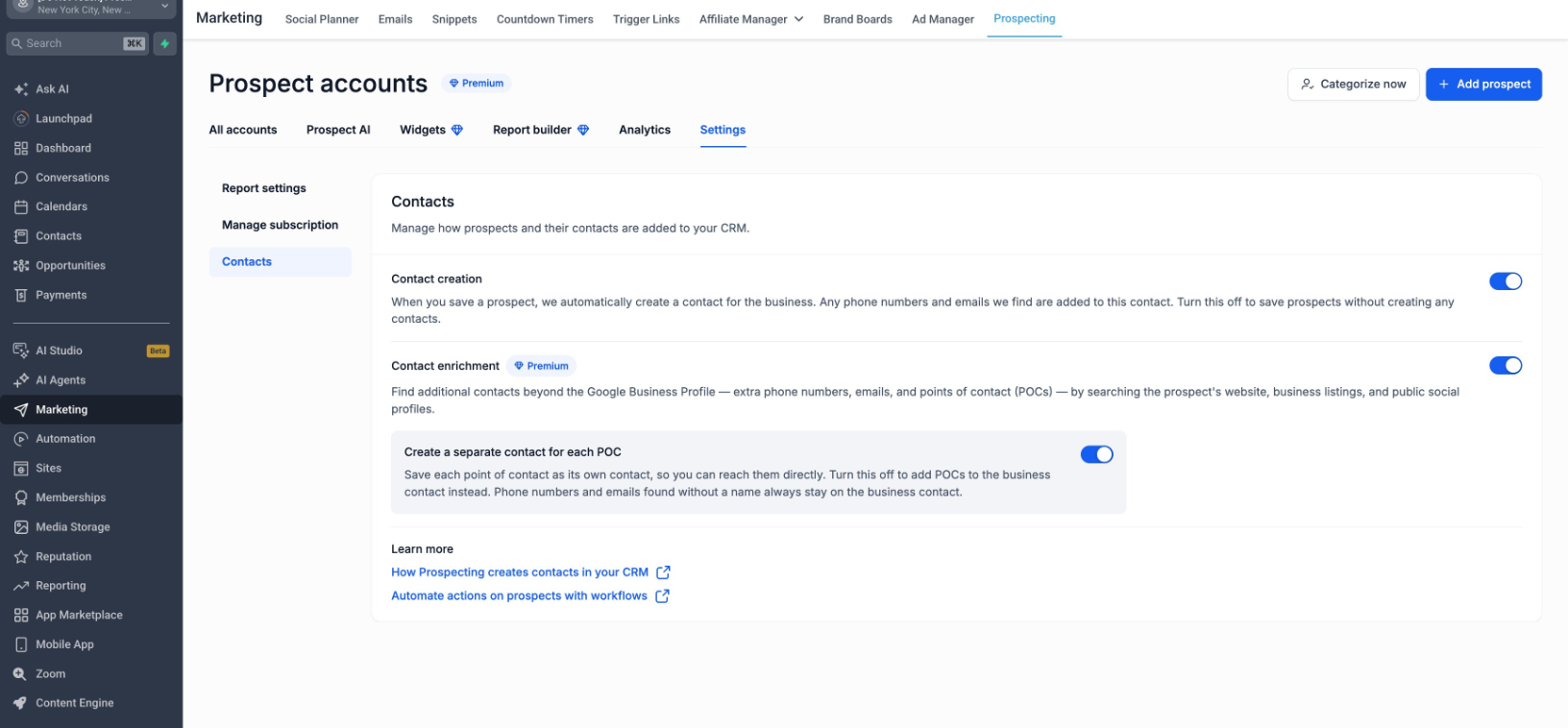
Contact enrichment is a Premium feature and is off by default for users on basic prospecting plan. Turn it on to find additional contacts beyond the Google Business Profile.
Enrichment looks for:
- Extra phone numbers on website and listings
- Extra emails on website and listings
- Points of contact (POCs) through our data partners — named people like owners and managers on LinkedIn if any
These are found by searching the prospect's website, business listings, and public social profiles. Enrichment is where POCs come from, so the organizing options in the next section only apply when it's on.
How found details are organized
Prospecting handles two kinds of details differently:
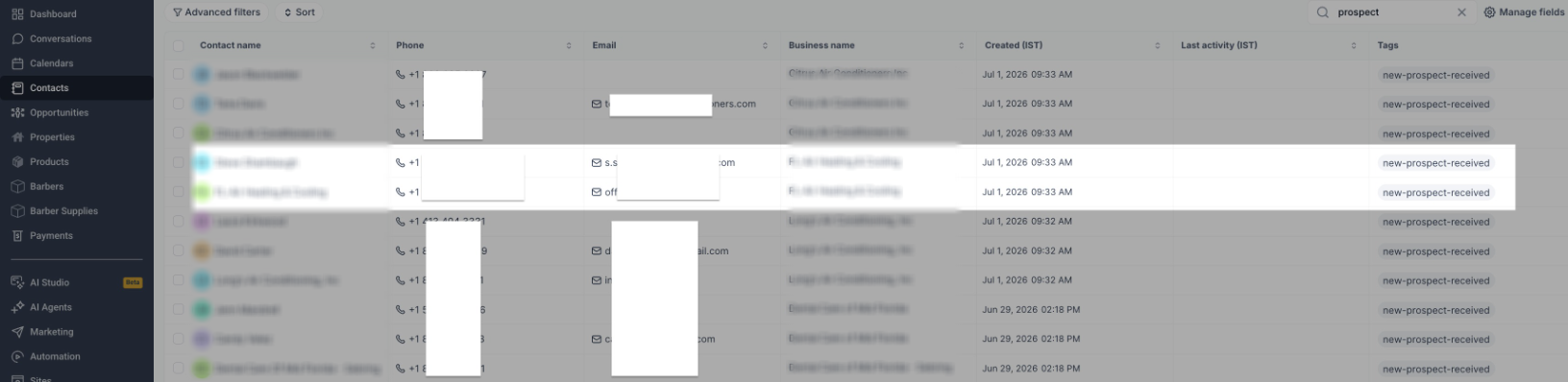
- Named contacts (POCs): saved as their own contact so you can reach them directly. Controlled by the "Create a separate contact for each POC" toggle (on by default). Turn it off to add POCs to the business contact instead.
- Unnamed details: phone numbers and emails found without a name always stay on the business contact. This keeps your CRM clean and isn't something you need to manage.
For example, a prospect with enrichment on and POCs set to separate might create 1 business contact plus 2 POC contacts, with any unnamed details kept on the business contact.
Contact fields mapping
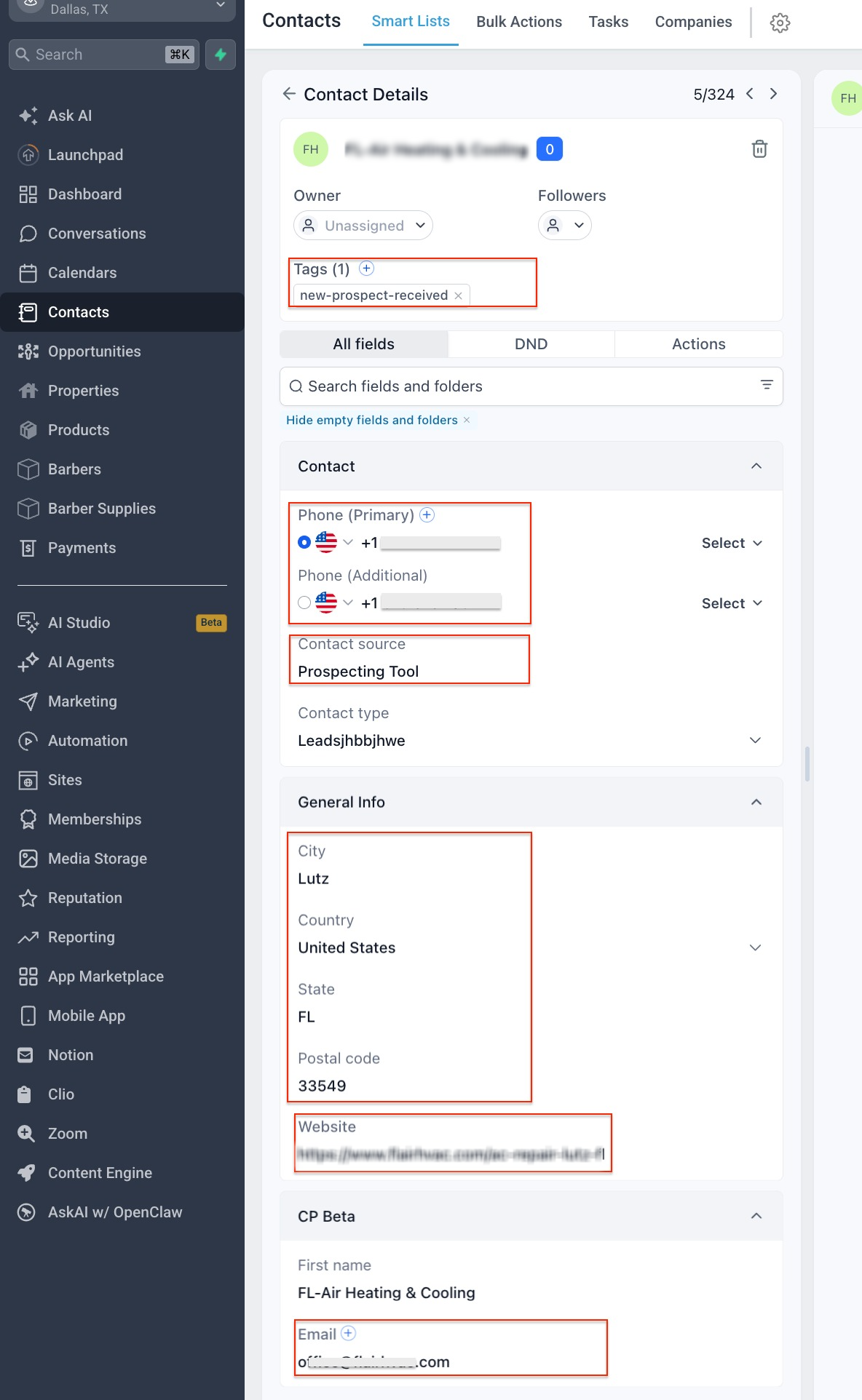
We automatically map prospect's information to relevant standard fields in the contacts
- Phone number: Scrapped from GBP
- Additional phone number: If more than one phone number found from website, listings etc
- Email: Similarly fro emails found
- Contact source: Prospecting Tool, so you can use tags in workflow for better management
- City
- Country
- State
- Postal code
- Website: Website url of the prospect found from GBP or other listing profiles
Was this article helpful?
That’s Great!
Thank you for your feedback
Sorry! We couldn't be helpful
Thank you for your feedback
Feedback sent
We appreciate your effort and will try to fix the article